
Teams
Learn how to create Teams to help optimise care navigation.
Overview
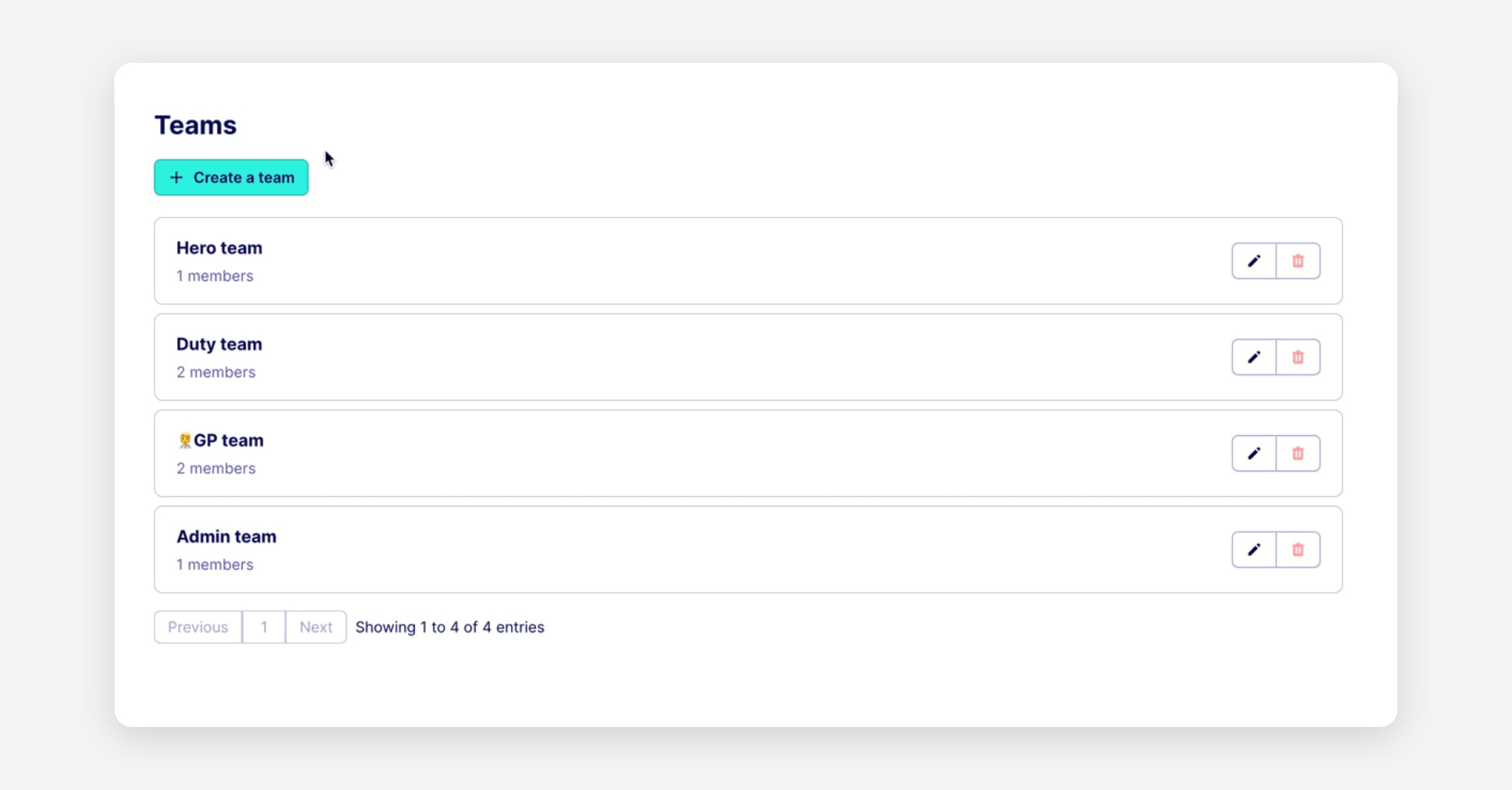
Admin teams let you group staff members together so that Inbox episode can be assigned to the whole group rather than to a single person. This is particularly useful for shared workflows like care navigation, reception triage, or clinical admin.
Where to create a team
Navigate to Settings → Systems & account → Admin teams. This is where all teams for your practice are created and managed.
Creating a new team
From the Admin teams settings page, select Create team. Give the team a name that reflects its role or function — for example, "Care Navigation" or "Reception". Then add the staff members you want to include.
Once saved, the team will immediately appear in the Inbox assignment dropdown for all admins at your practice, ready to be assigned tasks.
Adding or removing team members
You can edit a team at any time from the same Admin teams settings page. Adding a new member means they will start seeing tasks assigned to that team in their My Inbox view. Removing a member has the reverse effect — they will no longer see the team's episodes by default, though episodes previously assigned to the team remain unchanged.
Tips
If the assignment dropdown in the Inbox shows "No teams yet", it's a prompt that no teams have been created for your practice. Follow the steps above to set one up before assigning tasks.
A staff member can belong to more than one team, which is useful if they cover multiple roles across different care pathways.
Was this helpful?