
Multi-tenancy
Login to multiple practices using one account
The multi-tenancy feature in Hero Health allows users to manage multiple practices from a single account, simplifying the process of accessing different practice groups. Here's a guide on how to navigate this feature, including creating new practices and inviting team members.
Accessing multiple practices
To access multiple practices, follow these steps:
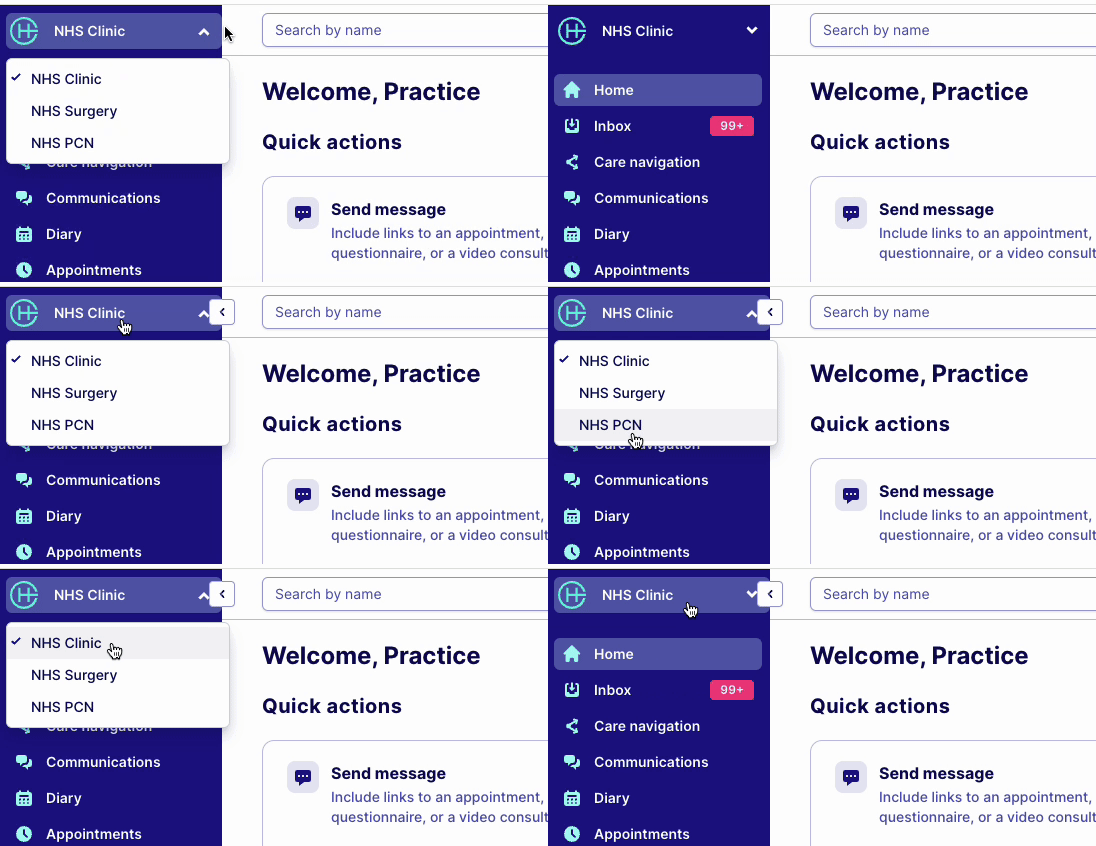
Select the dropdown: Look for the dropdown menu next to your practice name in the top-left corner of the screen. If you have access to multiple practices, you'll see them listed here.
Switch practices: Click on the desired practice from the dropdown menu to switch between different practice groups.
Inviting team members to a practice
To invite team members to join a specific practice, follow these steps:
Select the practice: Choose the practice to which you want to invite a team member.
Go to settings: Navigate to
Settings > System & account > Admin accounts.Invite administrator: Click on "Invite administrator" to send an invitation to a team member.
Need help?
If you have any questions or require further assistance, you can contact Hero Health support through the chat icon in the app or by emailing [email protected].
This guide should help you navigate Hero Health's multi-tenancy feature, providing you with the flexibility to manage multiple practices with ease. If you need additional assistance, don't hesitate to reach out to our support team.
Was this helpful?