
Diary view
Learn how to perform different actions on the diary view within Hero
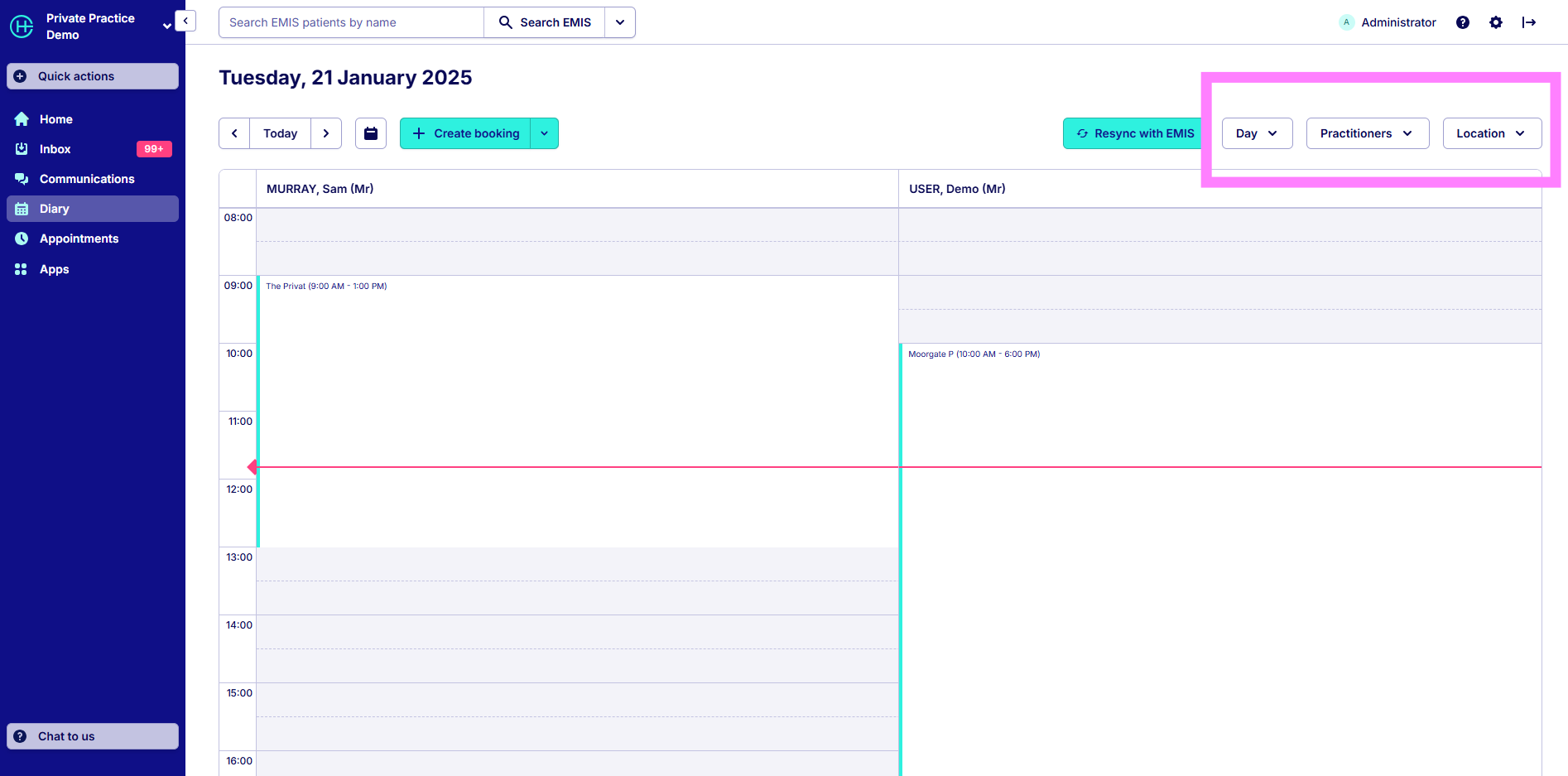
You are able to view the diary per practitioner, location and by time window. The available time windows are a Day and 3 hours.
How to change the view
Once on the diary page, you will be able to change the view using the drop downs on the top right of the screen. click the Day dropdown to switch between time windows. Click on the Practitioners drop down to view all practitioners, you can select All practitioners or check the boxes of the practitioners you would like to see. To change locations, click the Locations drop down. Again you are able to select All locations or check the individual boxes.
Filter practitioners in the diary
If you have selected all practitioners and all locations you will see all of the practitioners you have added in Hero. If you have selected all practitioners and specified locations, you will only see practitioners at the locations chosen.
Non-EMIS/SystmOne features
Add, remove or edit session availability
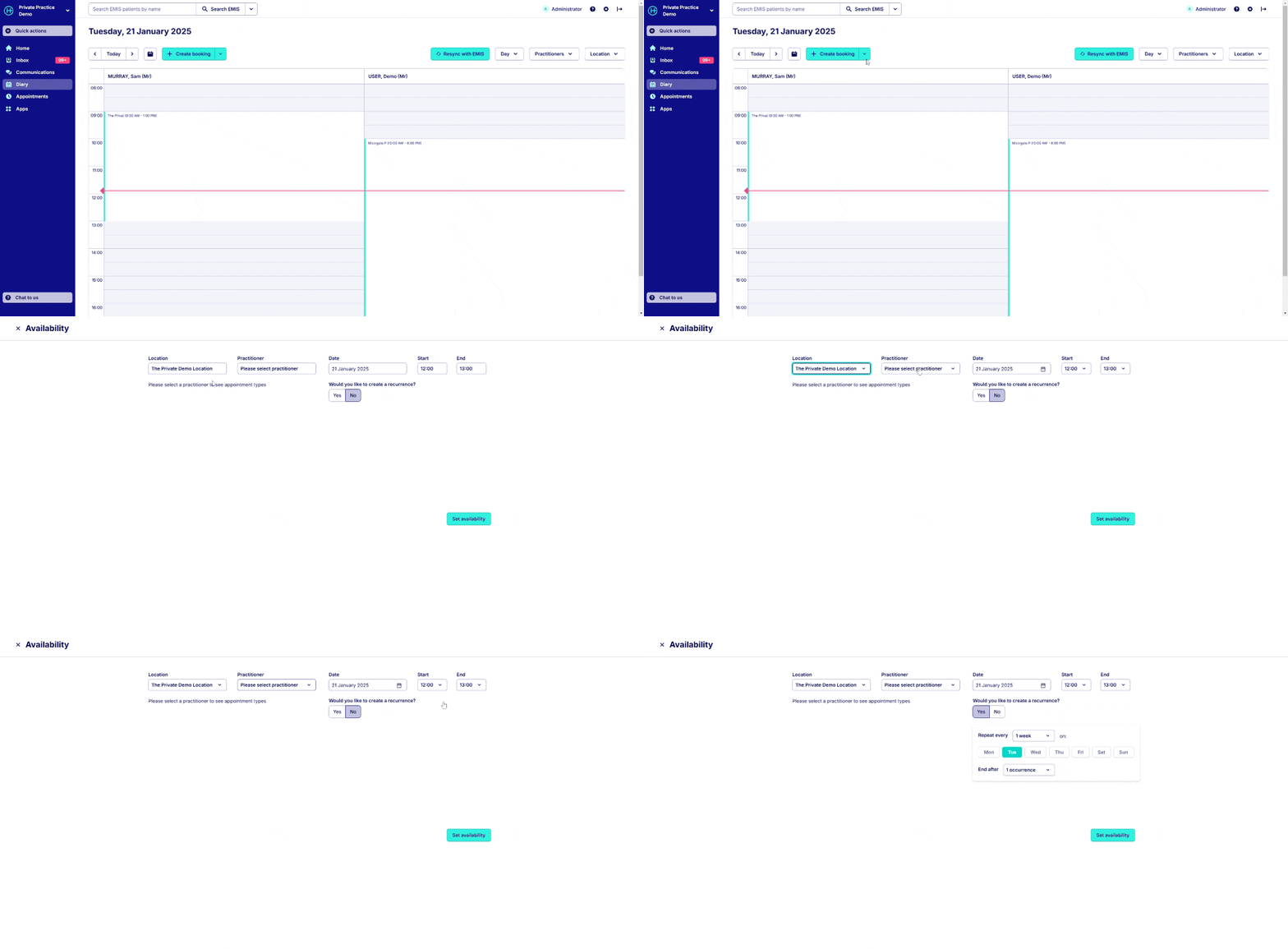
To create an availability session, click on the arrow next to +Create booking in the diary view. A drop down will appear, click Create availability. The availability page will appear, here you can select a Location, Practitioner, Date and Start/End times.
Then click Set availability.
Create a recurring availability session
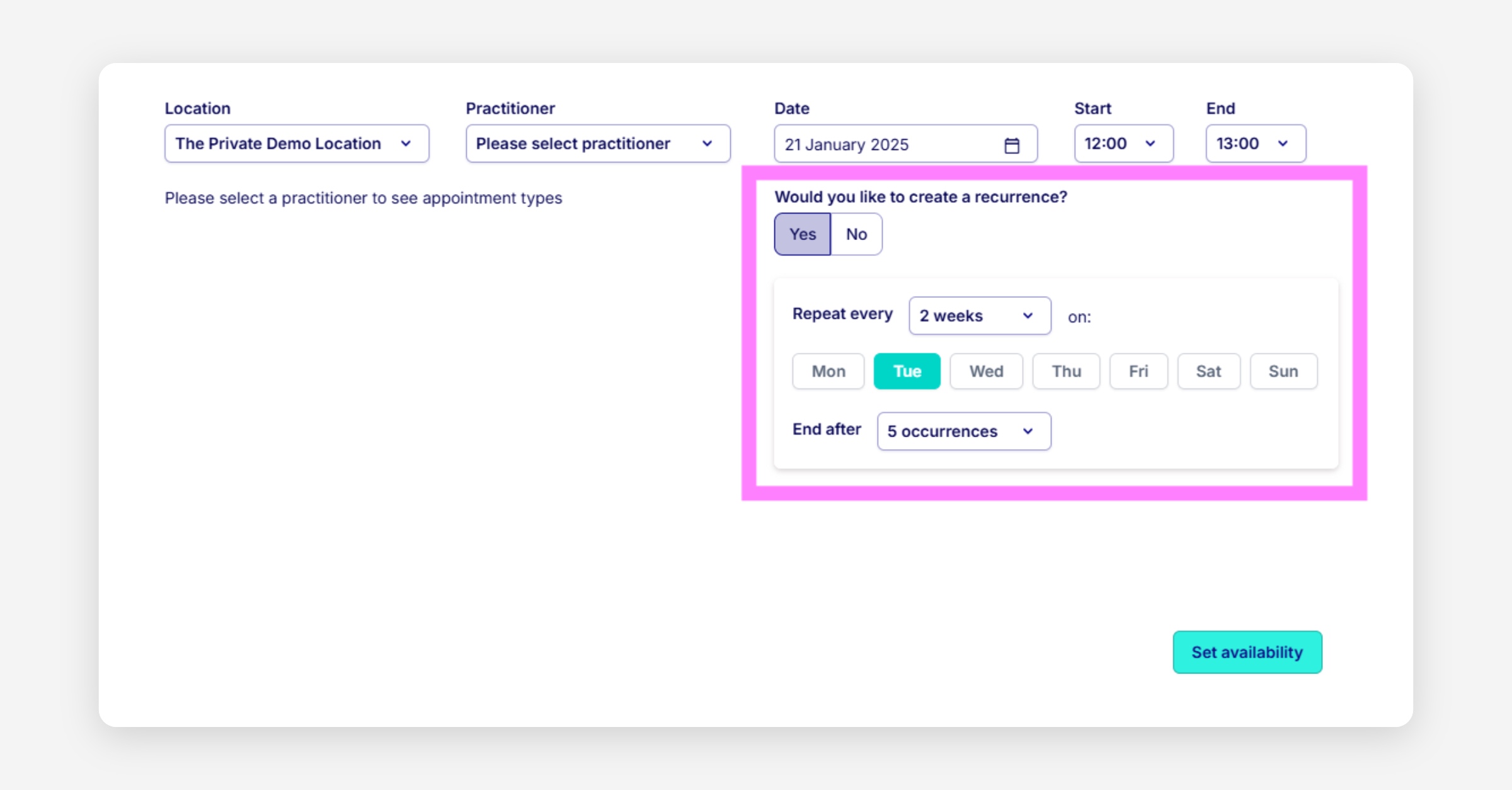
To create an recurrence of availability, follow the steps outlined above. Before clicking Set availability use the toggle to change Would you like to create a recurrence? to Yes. You will then be able to pick how often you want to availability to reoccur for (week by week) and you can choose which days you would like the availability to occur. You can then choose how many occurrences you want.
Update or delete an availability session
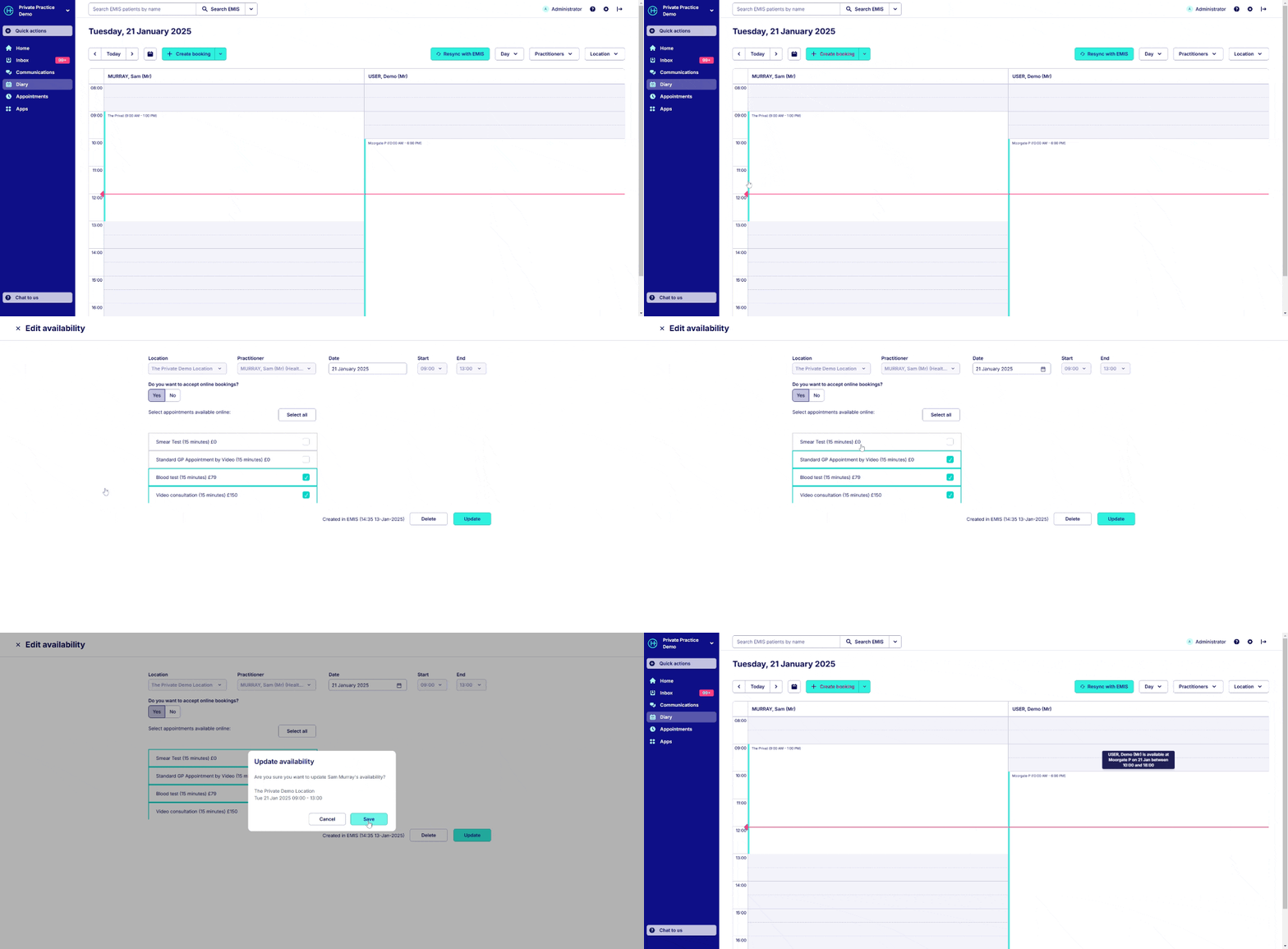
To update or delete an availability session, from the diary view, find the session you would like to make changes to, then click on the green or grey ribbon in the availability session you want to edit. This should open the 'Edit availability' page. You can then edit the Location, Practitioner, Date and Start/End time.
Set availability as visible or hidden online
To set the availability as visible/hidden online, follow the steps outlined above. Then use the toggle to switch between Yes/No under Do you want to accept online bookings?
If toggled to yes you are able to choose the types of appointment you would like to make available, you can Select all or check the individual boxes.
Block time in your diary so that it cannot be booked
There may be times where you wish to block time in a clinicians diary to prevent this being booked by patients online or by administrators.
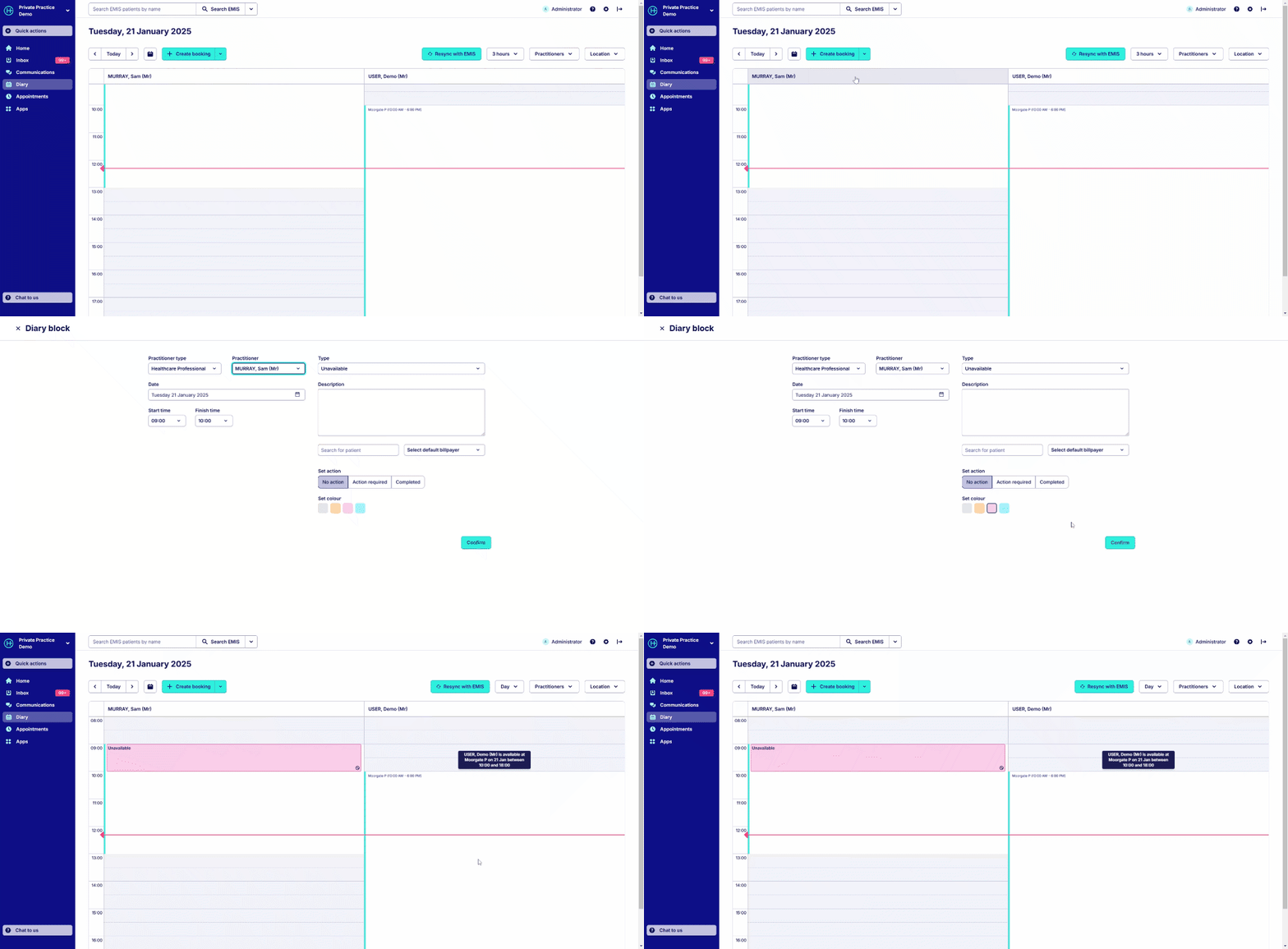
You can do this using the 'diary blocks' unavailability feature. To add a diary block:
Click the down arrow next to the 'create booking' button in the diary.
Select the Practitioner you want to block, as well as the start and finish time for the unavailability
Click 'Confirm'
Advanced diary blocks and unavailability
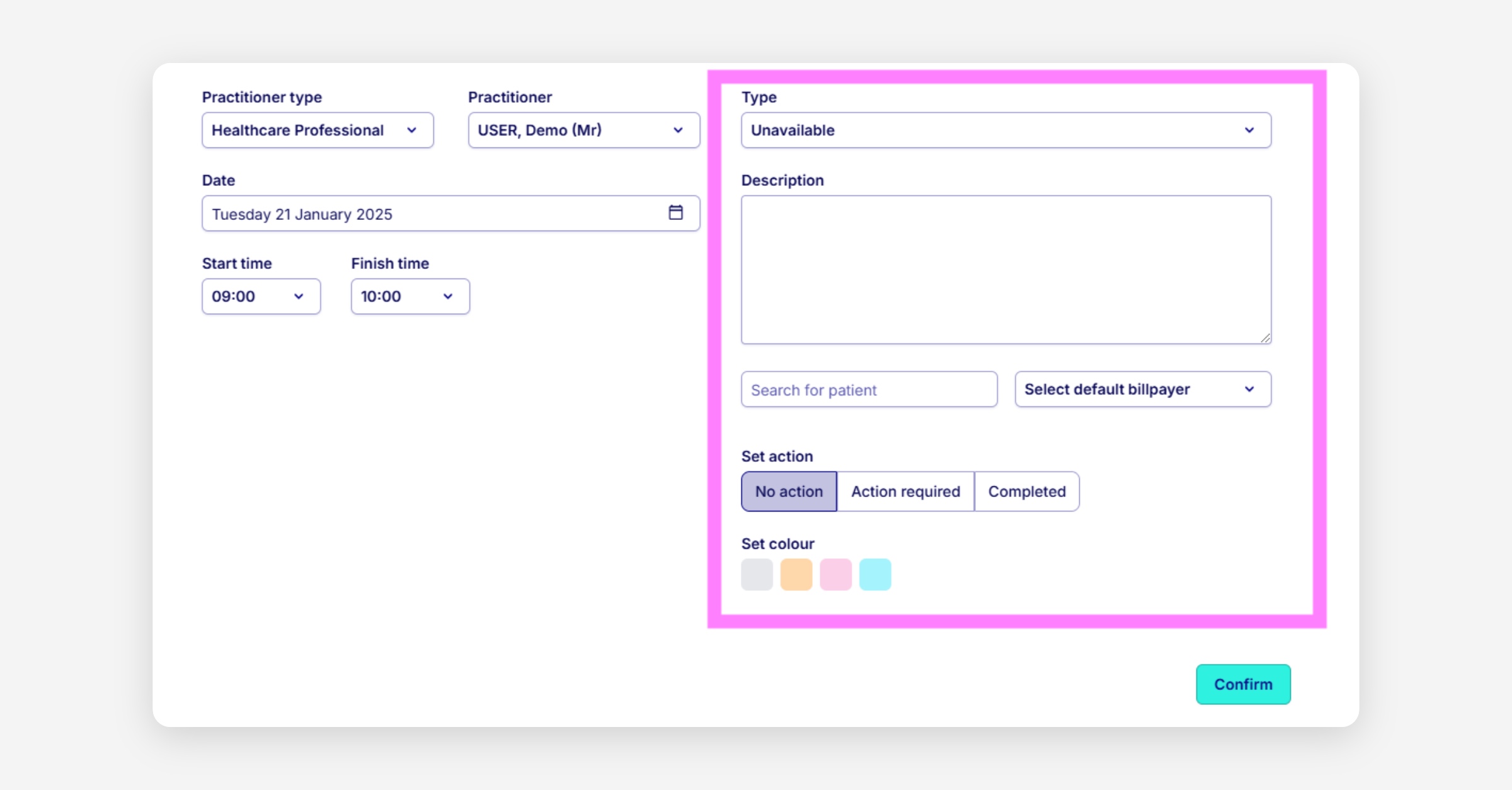
You can create different types of diary blocks to denote time dedicated to specific administrative tasks.
To customise the names of the administration blocks you would like to put in the diary, visit Settings, click Diary settings and then Custom diary blocks. You can then create your own diary blocks.
It is also possible to set actions and colours of diary blocks, and link a diary block to a patient.
Was this helpful?