
Networks
Learn how to setup networks and make appointment types visible to allow your partner sites to book into them.
To use Hero's cross-organisational functionality you will first need to set up an network, then configure the appointment types that you would like to allow to be booked cross organisationally.
How do I create a network?
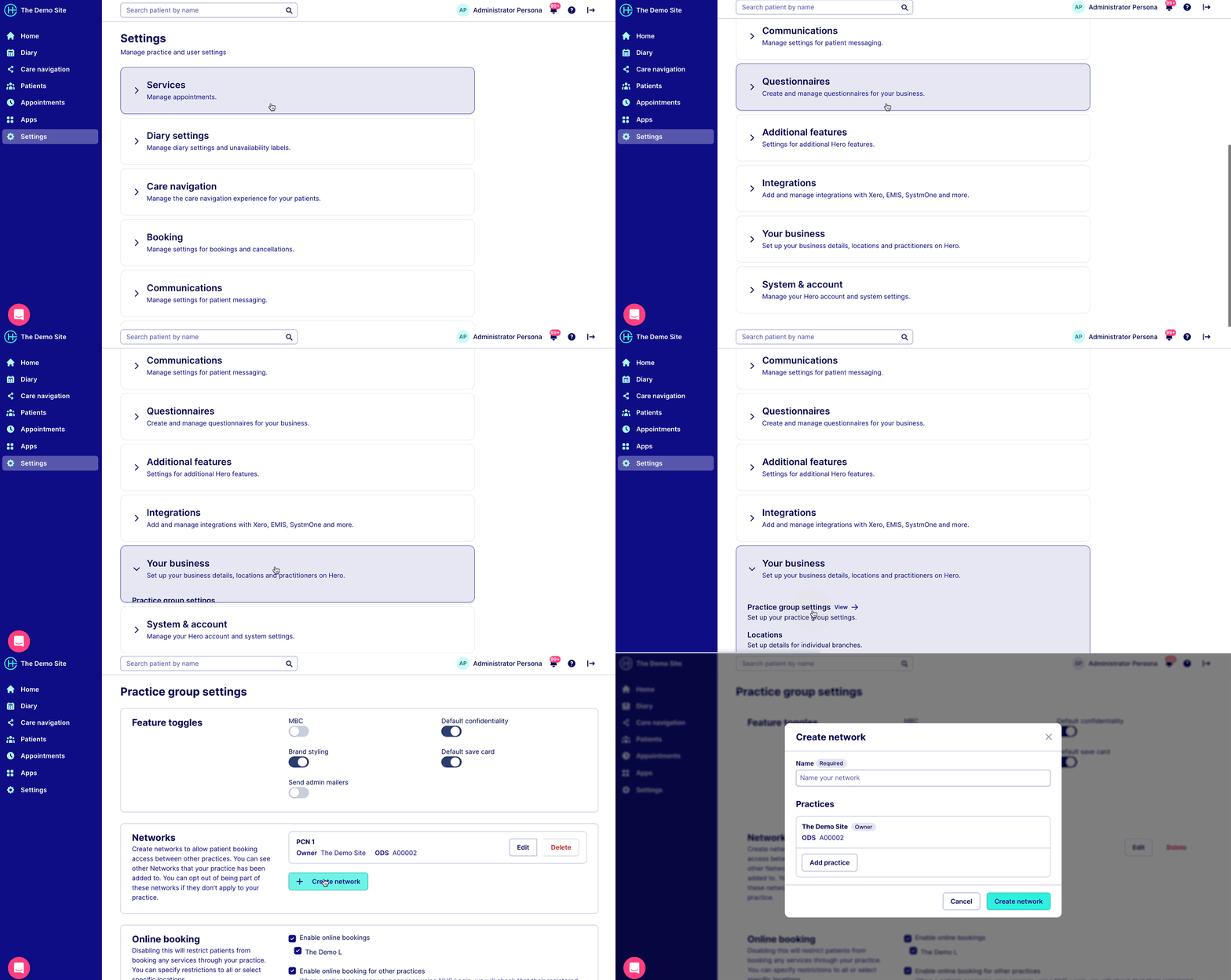
Click 'Settings' > 'Your business' > 'Practice group settings'
Select 'Create network'.
You will then be taken to a window where you can name your new network and add practice groups that are also using Hero to the network; either by searching the practice name or the ODS ID number.
Set individual appointments as visible across my network
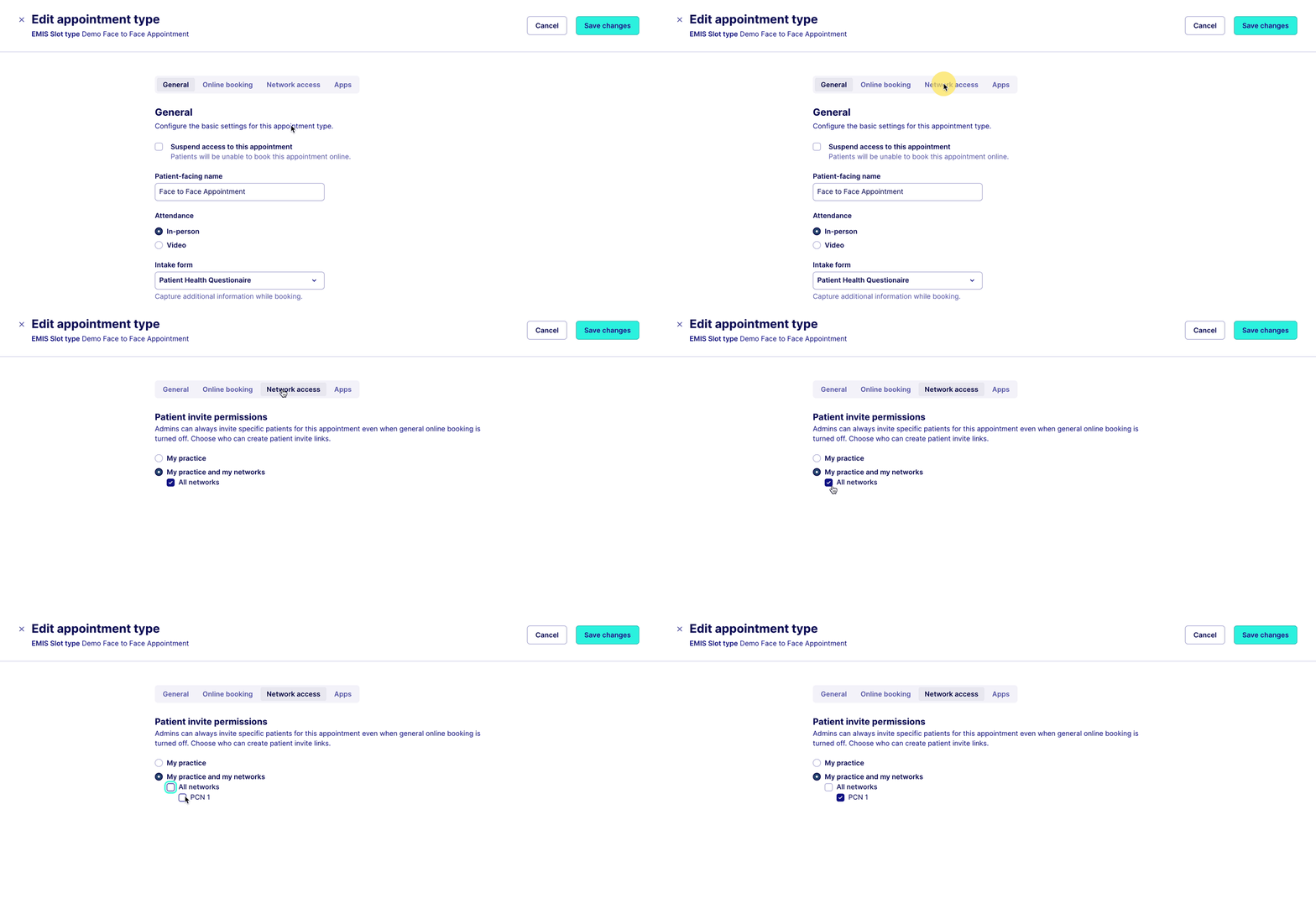
You will need to go to the appointments page in the Services settings. Once you have found the appointment you would like to make available for cross-organisational booking you should click Options and then Edit. Now click the Network access tab and change the checkbox button to My practice and my networks.
Check the box if you would like to make the appointment available at all networks. If you want to make it available at a specific network, uncheck the box and then check the boxes of the specific networks.
Share cross-organisational booking links
Once you have set up your network and everyone within your network has made their cross-organisational appointments available, you can start sending out invites. To do this, create a campaign or an individual message.
After you have typed your message:
Select 'Add invite link' > 'Patient invite link'.
Select your location and you'll see a list of your practice locations and locations within your Networks.
Once you have selected a location you can select an appointment. you will notice that the appointments are those that are available via cross-org at the location you picked.
You can then optionally choose a practitioner.
Was this helpful?