
Stripe: Reporting
Learn how to report on your invoices and track unpaid invoices
Updated over a year ago
How to view an invoice in Stripe
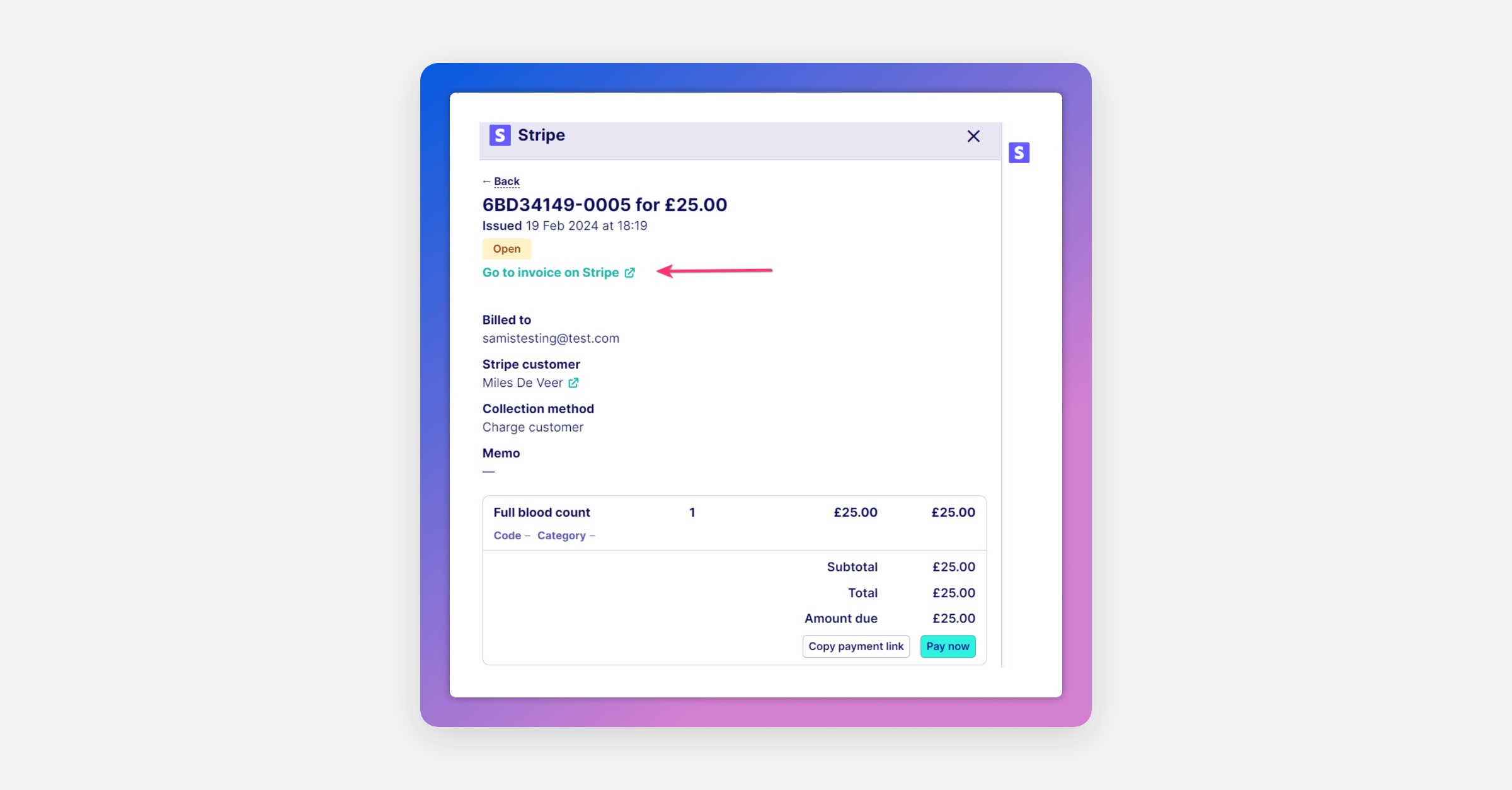
When an invoice is raised in Hero via the App Toolbar, the invoice is also created within Stripe. You can view the invoice in Stripe either by visiting your own Stripe Dashboard, or by clicking "Go to invoice on Stripe" when viewing the invoice within the App Toolbar.
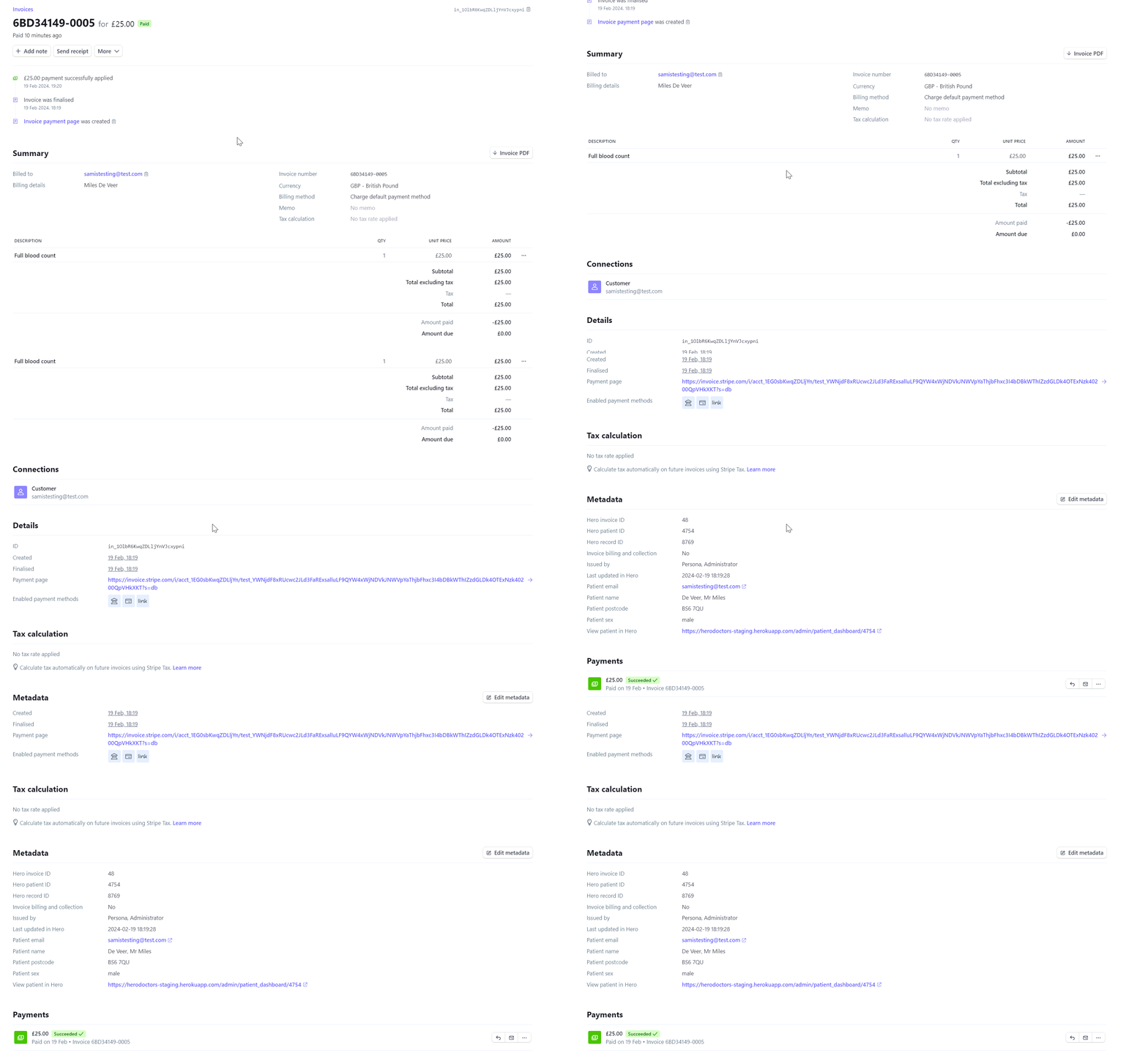
The invoice is viewable in full within Stripe's billing module. Hero data is attached to the Stripe invoice as 'metadata'. Metadata can be viewed in Stripe's Dashboard and is also indexed for searching within Stripe.
How to control the data passed to Stripe
To enable rich reporting from within Stripe, the Hero-Stripe integration syncs data from Hero to Stripe.
When an invoice is created, we pass from Hero to Stripe:
Patient name
Patient gender
Patient registered practitioner
Patient mobile
Patient email
Patient postcode
Invoice billing and collection
Appointment location
Appointment practitioner
When a customer is created or updated, we pass the following information from Hero to Stripe:
First name
Last name
Full name
Date of birth
Mobile
Email
Postcode
Gender
Registered practitioner
You can switch off selected metadata fields in the App settings within Hero. This will prevent this data being passed across the Stripe. Go to Apps on the main navigation, then Stripe and then Settings.
How to run financial reports from within Stripe
How to report on invoices
To report on invoices issued through Hero and into Stripe:
Go to your Stripe Dashboard
Then find 'Invoices' (you can search for Invoices via the Search bar, or generally you will find a list of invoices at: https://dashboard.stripe.com/invoices)
Once you can see a list of all your invoices, you can:
Add metadata columns to pull Hero data (such as Patient name) into your table
Apply filters to adjust the data you can see
Export your data as a CSV file
How to create an unpaid invoices report
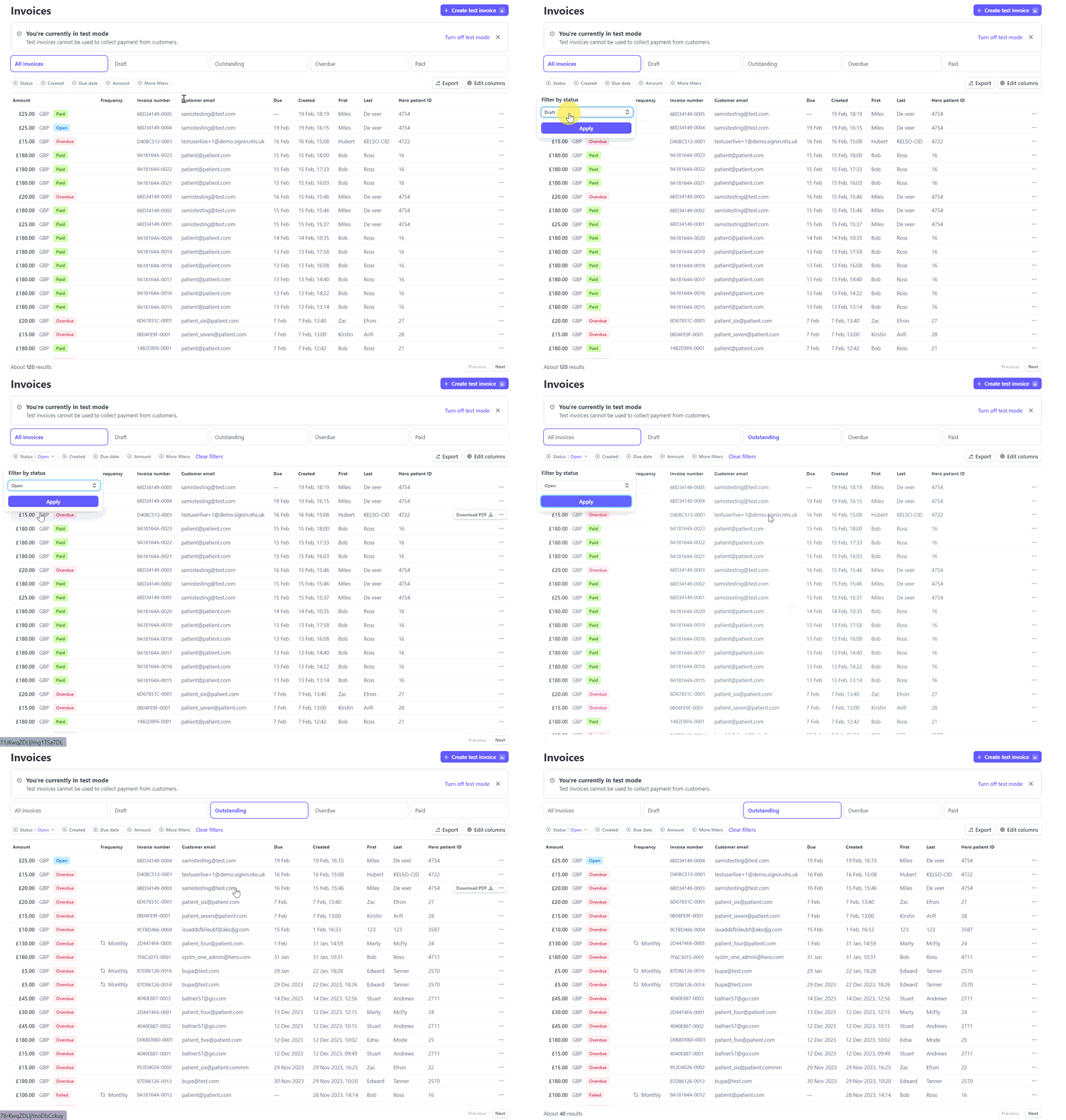
To create an unpaid invoices report you can either select 'Outstanding' at the top of the invoices table, or you can add a Status filter to show only Open invoices.
How to report on payments
To report on payments:
Sign in to your Stripe Dashboard
Navigate to the Payments page, either via the main navigation or by searching 'Payments' within the Search bar
Here you review all payments, add in columns to show Hero data and download financial reports as CSV files.
Related Articles
Stripe Billing & Payments: How to create an invoice
Stripe Billing & Payments: How to take payment for an invoice
Stripe Billing & Payments - Advanced: How to store a balance on a customer account
Stripe Billing & Payments: How to set a patient's default Stripe customer
Stripe Billing & Payments: How to link Stripe products to Hero slot types
Was this helpful?