
Stripe: Take payments
Learn how to take payment for an invoice issued through Hero
Updated over a year ago
Taking payment when creating an invoice
Once you've populated your invoice, you :
Request payment - This creates the invoice, with a specific due date for payment. By default this will be set to today's date. If no cards are stored for the Stripe Customer, you can add a card within Stripe by selecting "Add new card"
Pay now - This allows you to collect payment immediately by card. Note: If you wish to collect payment via Stripe terminal, or via an external payment method (Cash, Cheque etc.) you will need to first request payment and then take payment (see below)
You can store a populated invoice by choosing to 'Save as draft'. Draft invoices can be edited and updated with additional line items. They are not issued to the Stripe Customer until they are finalized, either by selecting the 'Request payment' option or proceeding with the 'Pay now' option.
Taking payment for an existing invoice
To complete payment for a finalized invoice, find the invoice in the Stripe App within the App Toolbar, click the invoice to see the full invoice and then select "Pay now"
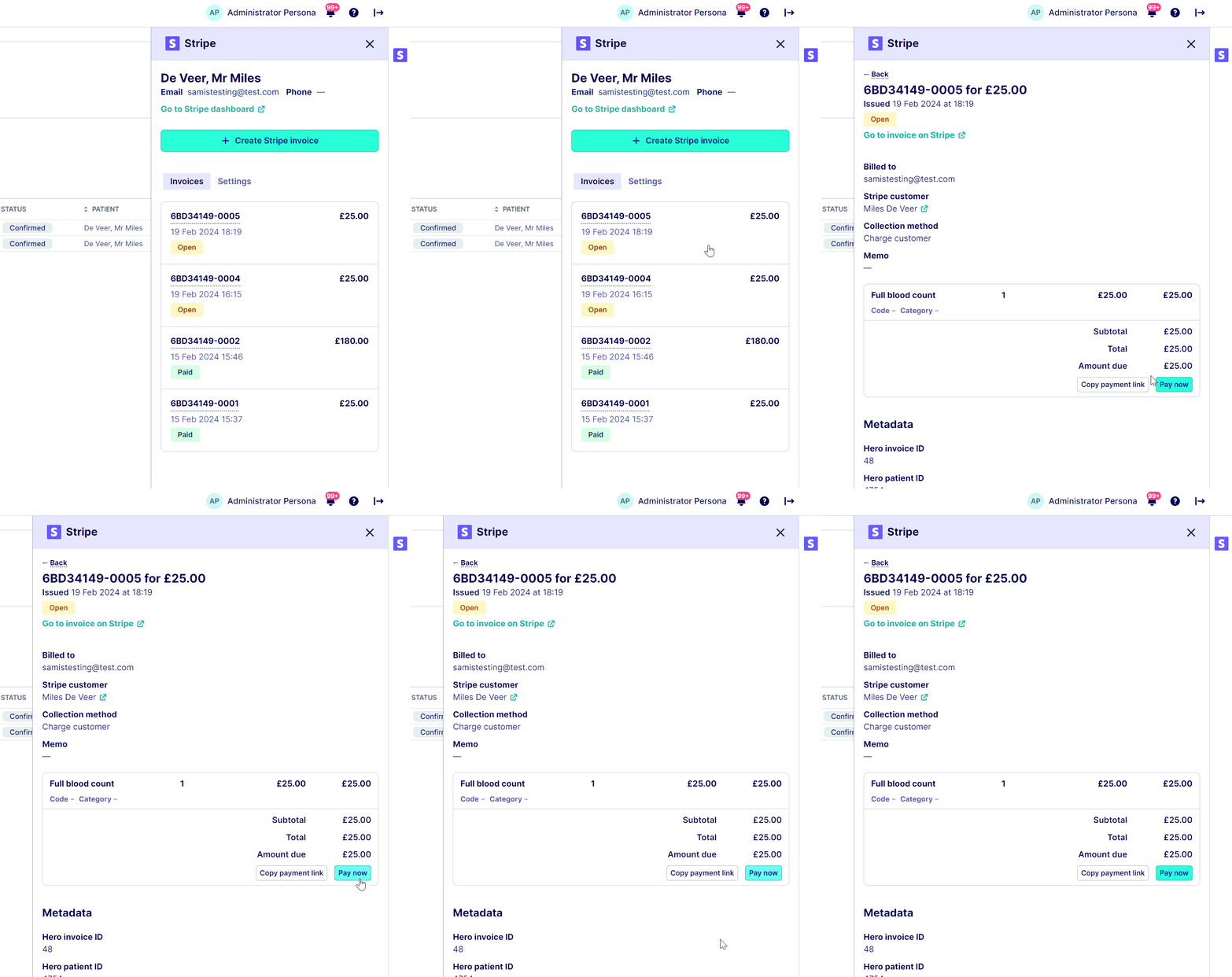
How to proceed with different payment options
Once an invoice has been finalized, you can take payment via:
Card - This allows you to bill to stored cards, or add new cards for collecting payment.
Card terminal [If setup] - This will send the payment to a connected card terminal for you to process. Once paid via the terminal, the invoice will be marked as paid.
External payment method - Cash, Cheque, Bank Transfer, Insurance
The payment link can also be copied and sent to the patient using Hero's integrated communication functionality.

Related Articles
Stripe Billing & Payments: Configure invoicing and payment collection through Hero
Stripe Billing & Payments: How to create an invoice
Stripe Billing & Payments: How to use Stripe's financial reporting features
Stripe Billing & Payments - Advanced: How to store a balance on a customer account
Stripe Billing & Payments: How to link Stripe products to Hero slot types
Was this helpful?