
Docs / Onboarding
Invite admins
You can have as many administrators on Hero as you need, change their permissions and map them to a practitioner where applicable.
To invite a new administrator, go to settings and then find System and account and then Admin accounts. Click the Invite administrator button. You can now enter their Email address, First name and Last name.
The admin will then receive an invite create a password and login via email.
Note: If you did not receive your invite, please contact [email protected] so we may assist you.
Edit an administrator
To edit an administrator, follow the instructions above to get to the administrators page and then click Options > Edit. Here you can edit an administrators name. (Please email [email protected] to update the email address). You can map them to a practitioner and edit their permissions.
Archive an administrator
When an administrator is archived, they will no longer have access to their account. To archive an administrator, follow the instructions above to get to the administrators page. Then click Options and then Archive.
You can see your archived admins by clicking archived administrators in the top left of the screen. This will show you a list of archived administrators, from here you can click options and then Unarchive to allow them access again.
Admin permissions
The permissions you can configure for an administrator are as follows:
Settings permissions: Whether or not the admin can edit Hero's settings.
Widget permissions: Whether or not the admin can use the widget.
Patient index permission: Whether or not the admin can view the patient table
Care navigation permission: Whether or not the admin can edit the Care navigation settings.
Can create availability: Whether or not the admin can create availability in Hero (only applicable for non EMIS or Systm1 using practices).
Notification index permission: Whether or not the admin can access notifications.
Reporting permission: Whether or not the admin can view reporting.
Diary sidebar: Whether or not the admin has access to the diary sidebar.
Practitioner index permission: Whether or not the admin can edit practitioners.
Patient messaging and referrals: Whether or not the admin can message patients.
Note: To completely revoke access to Hero for an administrator select Options and then Archive. This administrator will no longer be able to sign in.
Multi-factor authentication (MFA)
NHS Digital strongly recommends the use of multi-factor authentication to protect access to any system that handles patient or clinical data. MFA adds an extra layer of security beyond just a password, helping make sure only the right people can access sensitive information. Following this guidance, Hero supports MFA to give your account the highest level of protection.
You can set up MFA in two ways: email verification or an authenticator app. After entering your Hero password, you’ll be prompted to choose which method you’d like to use.
Email MFA
If you choose to authenticate using email:
A verification code will be sent to the email address linked to your Hero account.
Enter the code to confirm setup.
Once enabled, you’ll receive a new email code every time you sign into Hero. You’ll need to enter this code after your password to access your account.
This option is quick and easy to set up, especially if you regularly have access to your email inbox.
Authenticator app MFA
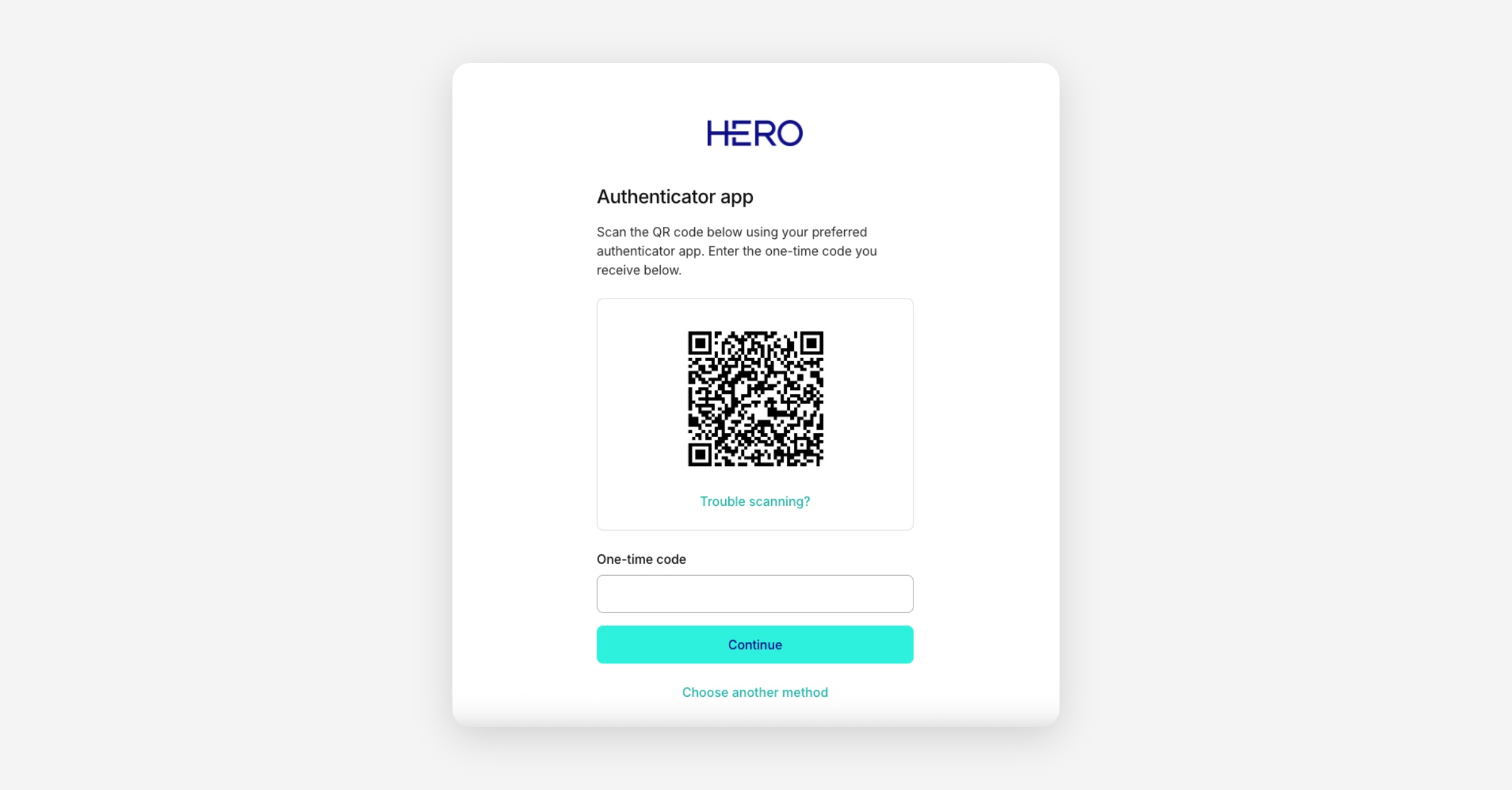
If you prefer using an authenticator app:
Make sure you have an MFA app installed on your phone.
We recommend Microsoft Authenticator, but Google Authenticator or Authy also work!Select MFA app during setup — a QR code will appear on your screen.
Open your authenticator app and scan the QR code to link it to your Hero account.
A 6-digit code labelled Hero Health will appear in your authenticator app.
Enter that code in the One-time code field in Hero to finish setup.
Once this is enabled, you’ll need to enter the constantly-refreshing code from your app every time you sign in.
This method is usually the most secure and is recommended if you use Hero frequently.
Extra tips that might be helpful to include
Lost access to your MFA method?
If you lose access to your email or authenticator app, please email [email protected]. The Hero support team can securely help you reset your MFA method.
Changing your MFA method
If you want to switch between email and app authentication, please contact [email protected]. The support team can safely update your MFA method for you.
Why MFA matters
Passwords can be guessed, reused, or compromised. MFA significantly lowers the risk of unauthorised access, especially in environments handling sensitive healthcare information.
Keep your device secure
If you’re using an authenticator app, make sure your phone has its own passcode or biometric security enabled.
Was this helpful?