
Page messaging
Learn how to update the yellow banners on your patient facing care navigation pages.
Hero's Care Navigation gives you the ability to configure the messaging that displays on your Care Navigation homepage both in-hours and out-of-hours. You can also customise the confirmation message shown to patients once they submit a request.
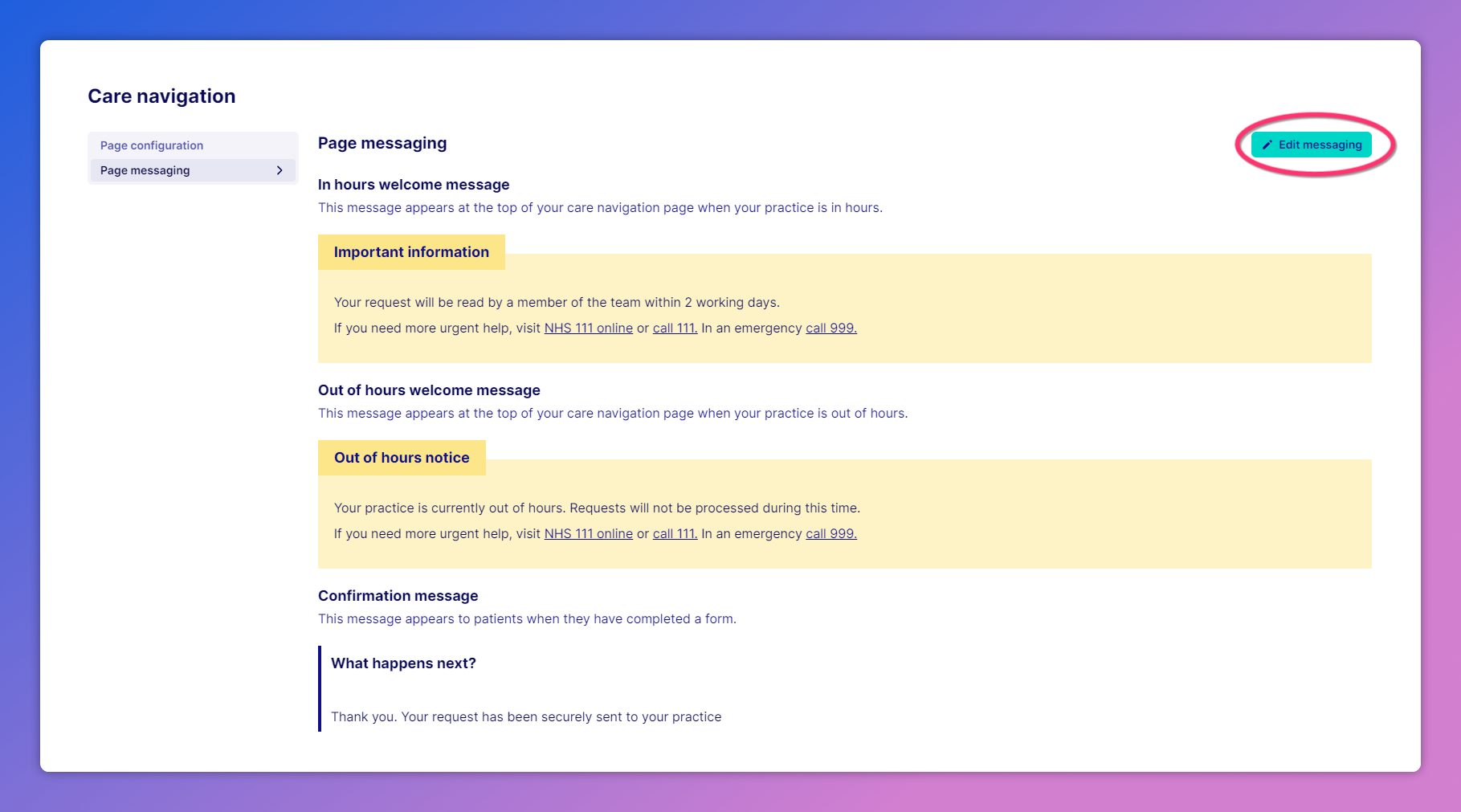
How to configure Care Navigation page messaging
Visit the 'Page messaging' settings page, and select 'Edit messaging' to customise the messages displayed to patients:
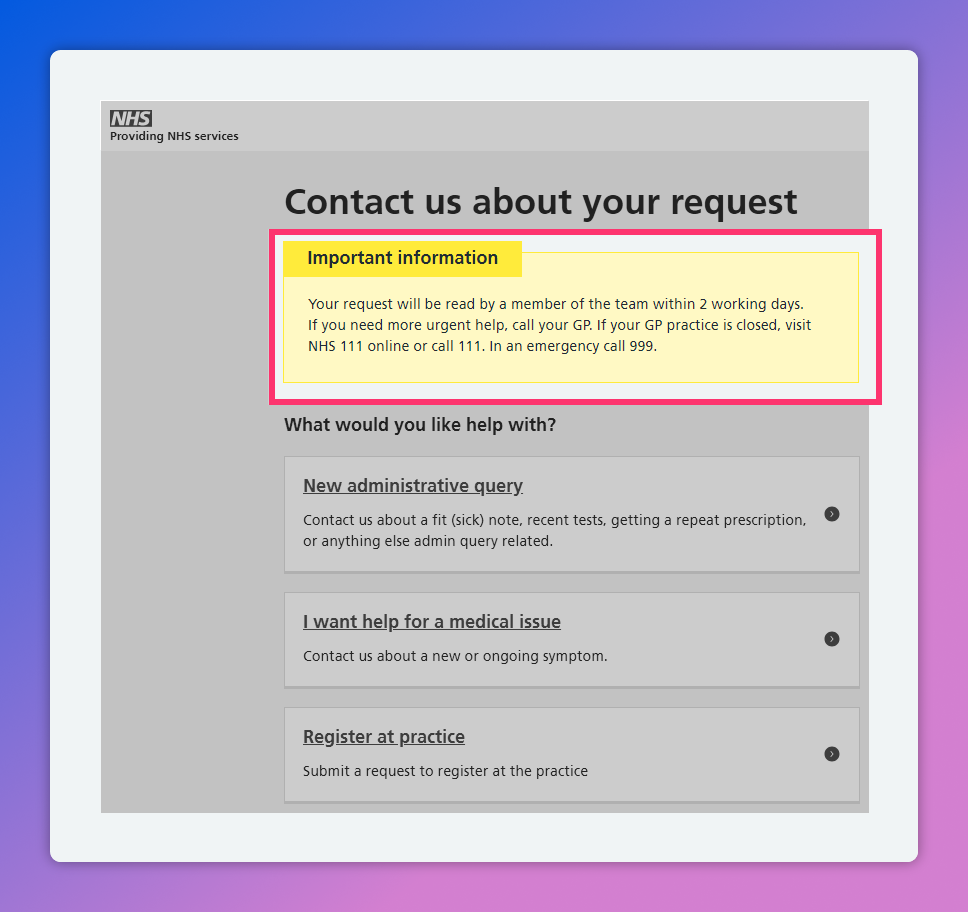
Once the Edit messaging button has been selected, you'll be presented with a modal that allows you to adjust the alert messaging. Below is an example of the 'in-hours' welcome message, the first line of which can be adjusted:
Was this helpful?