
Patient replies
Learn how to message a patient and invite them to submit a one-time reply, and where you can view one time replies when they're submitted.
How do I send a message to a patient which they can respond to?
When you're using the message builder, you can allow the patient to reply by:
Select the 'Allow patient reply' button at the top left of the message box
A placeholder link will be added to your message that says '{{Reply link}}'
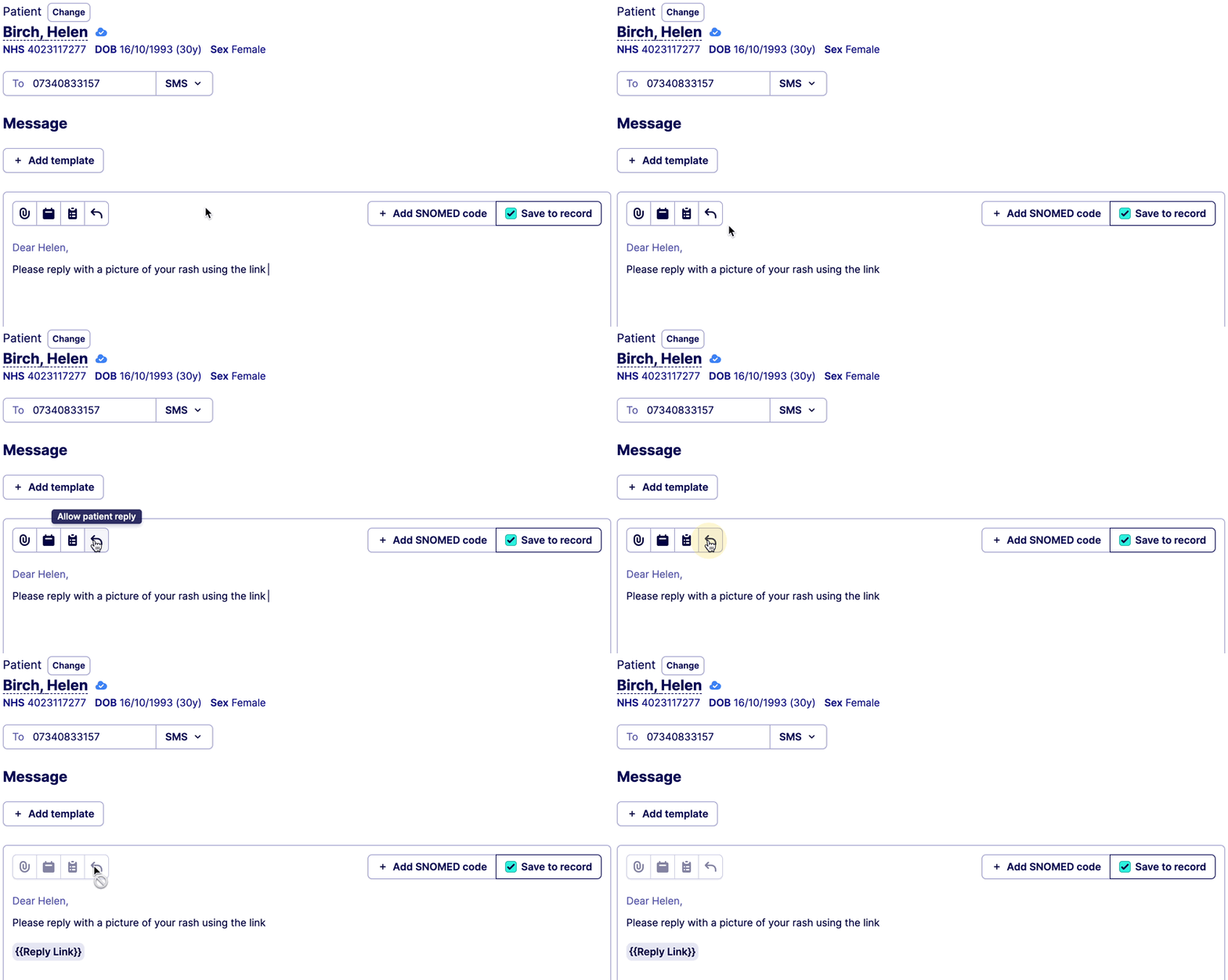
💡 You can remove this link by using the backspace on the text or clicking the 'x' on the chip at the bottom right of the message box.
What can a patient respond with?
Patient can respond with a free text entry and an optional file upload.
What kind of files can patients upload?
Images
jpg
png
Documents
PDF
TXT
Word documents
Where can I view the patient response?
The patient response is viewable via the inbox page in Hero. When viewing the Inbox:
Select 'Communications' from the list on the left hand side
Select' Patient response'
This will filter your inbox to show all incoming items that are patient responses.
Select the response you want to view it in more detail.
How do I assign these responses to myself?
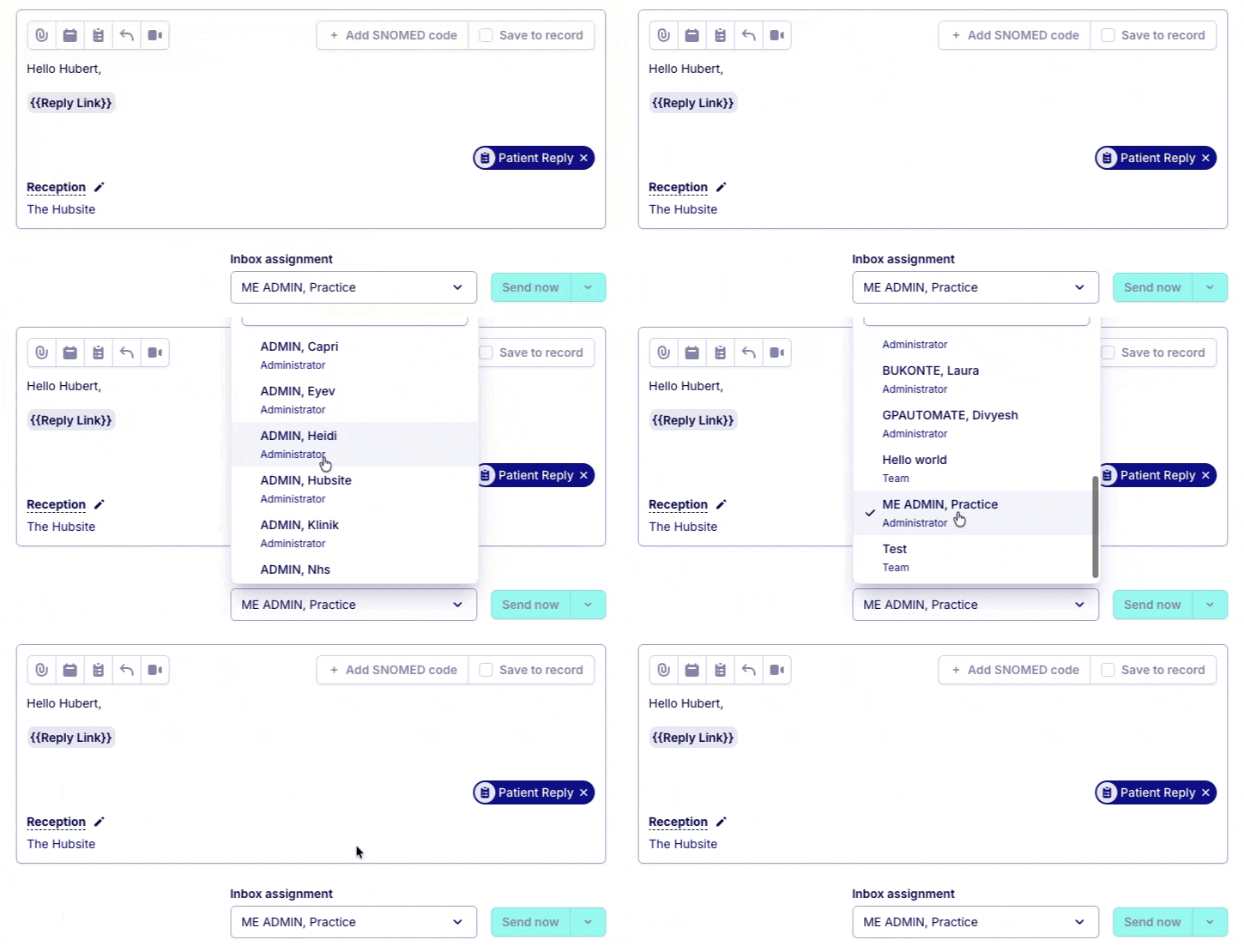
You can assign patient responses to yourself by selecting the 'Inbox assignment' option next to the send button.
How do I save the response to the patient's record?
❗ This feature is only available with an EMIS or SystmOne integration active
When viewing the patient response, there is a button at the top of the detail view that says 'Save to record'. At busy intervals within the Hero system this request may not happen instantly.
Was this helpful?