
Send an attachment
Learn how to send a secure attachment to a patient via SMS or Email.
Hero's individual messaging allows you to send an attachment from your desktop or laptop computer or if you have your EMIS integration enabled, you can retrieve an attachment from the patients EMIS record.
How to attach documents to an SMS message sent to a patient?
Start by navigating to the message builder by accessing the 'Send message' action in the Quick actions on the home page and then select your patient.
Find out more about how to send an SMS or Email message
Attach document from your computer
Once you have access to the message builder with your patient selected, to attach a document you need to:
Select the paperclip icon on the message
Choose upload from computer or Retrieve from EMIS
Locate and select the document from your computer files
Your attachment will be added to the message as a placeholder link displayed as {{attachment link}}
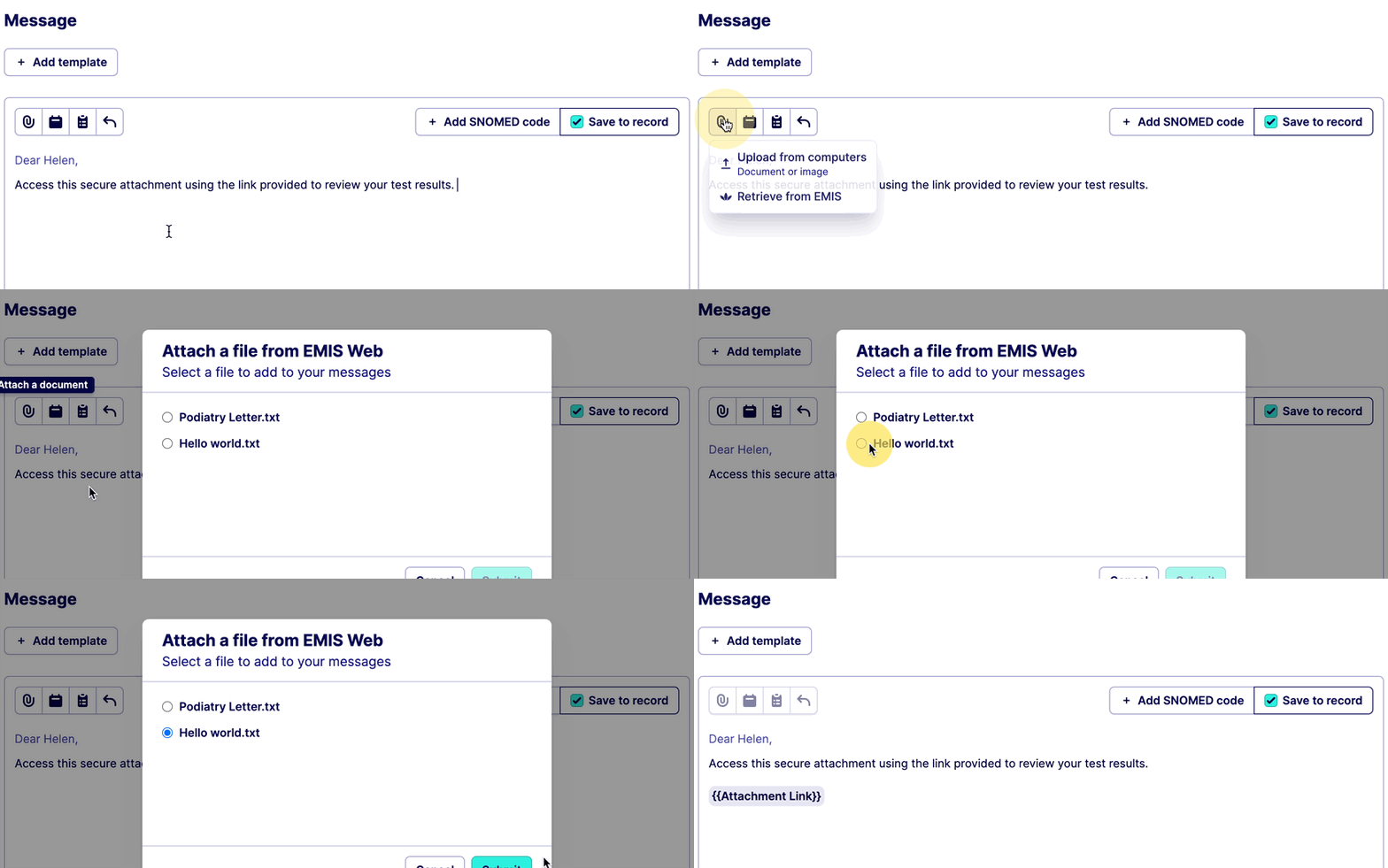
Retrieve document from EMIS
Once you have access to the message builder with your patient selected, to attach a document you need to:
Select the paperclip icon on the message
Choose Retrieve from EMIS
A modal will appear that retrieves the most recent documents from the patients record.
Select a document from the list
Your attachment will be added to the message as a placeholder link displayed as {{attachment link}}
What document types can be shared with a patient?
Our attachment feature allows you to share the following files:
Images
jpg
png
Documents
PDF
TXT
Word documents
How does the patient access the document?
When you send the message a short link will be generated to replace the placeholder text {{attachment link}} in your message body.
On receiving the message, the patient can open the link and will be asked to enter their DOB to authenticate their identity. If correct, they will gain access to view and download the document.
How long is the document available for?
The document is available for the patient to view and download for 28 days.
What if I send a document to the wrong patient?
If you send a document to the wrong patient you can deactivate the link by navigating to the sent messages within the communications page. The communications page is located on the left hand navigation bar in the Hero application.
Find out more about the sent message log
Where is the document stored?
Our documents are hosted and stored using AWS servers located within the EU.
Was this helpful?